Virtualizing Local AI: Proxmox, Docker, and GPU Passthrough Best Practices
The Infrastructure Evolution: From Single Workloads to Virtualized AI Labs
As we move past the mid-year mark and reflect on trends from recent conferences like ICML, a clear theme emerges in the open-source AI community: the professionalization of local infrastructure. The conversation has shifted from running a single model on a desktop to orchestrating multiple, isolated AI environments on a single server. This is the power of virtualization—a methodology that transforms a powerful physical machine into a flexible, secure, and scalable AI lab. For businesses and researchers serious about on-premise AI, mastering tools like Proxmox for bare-metal virtualization and Docker for containerization, bridged by the critical technology of GPU passthrough, is no longer optional; it’s the cornerstone of a mature, production-ready local AI strategy.
Virtualization directly amplifies the core advantages of local AI: it strengthens data privacy and security by isolating projects, enhances flexibility and scalability by allowing dynamic resource allocation, and solidifies your freedom from vendor lock-in by building on open-source platforms. This article provides a practical guide to building this virtualized foundation, ensuring your hardware investments deliver maximum utility and your AI initiatives can grow without constraints.
Why Virtualize Your Local AI Stack?
Before diving into the “how,” let’s solidify the “why.” A virtualized local AI environment delivers tangible benefits that address common scaling pain points:
- Isolation and Reproducibility: Run different AI projects (e.g., a stable chatbot, an experimental image generator, a fine-tuning job) in completely separate environments. This prevents library conflicts, allows for perfect reproducibility, and simplifies backups and migrations.
- Optimal Hardware Utilization: A single powerful GPU server can host multiple virtual machines (VMs) or containers, each running different models or serving different teams. This turns expensive hardware from a sporadically used resource into a continuously leveraged asset.
- Enhanced Security and Management: By isolating workloads, you contain potential security issues. It also simplifies user access control and allows you to snapshot a VM before a major update, enabling easy rollback.
- Development-to-Production Pipeline: Use lightweight Docker containers for development and testing, then deploy the same container to a more powerful Proxmox VM for production, ensuring consistency across the lifecycle.
Core Technology 1: Proxmox VE – The Bare-Metal Hypervisor
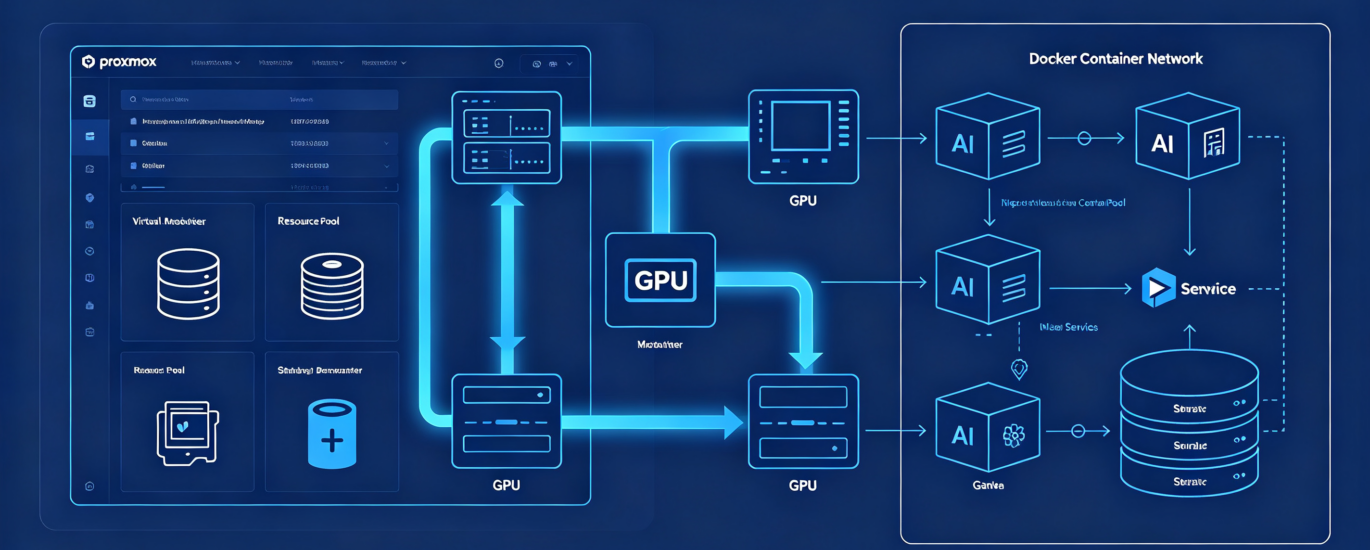
Proxmox Virtual Environment (VE) is a powerful, open-source platform that lets you turn a physical server into a hypervisor, managing multiple VMs and Linux containers (LXC).
Why Proxmox for AI?
It gives you complete control over the underlying hardware. You can create dedicated VMs with allocated CPU cores, RAM, and—critically—direct access to GPU resources via passthrough. It’s ideal for creating persistent, full-featured environments for long-running model servers or complex AI pipelines.
Best Practice Setup:
- Install on Bare Metal: Install Proxmox directly on your server hardware, not within an existing OS, for best performance and stability.
- Configure Storage Pools: Set up dedicated, fast storage (like an NVMe pool) for your AI VMs to ensure quick model loading and checkpointing. Use slower, larger storage for backups.
- Network Isolation: Create a separate virtual network (VLAN) for your AI workloads to manage traffic and enhance security.
Core Technology 2: Docker – The Containerization Engine
Docker packages an application and its dependencies into a standardized, portable unit called a container. For AI, this means you can have a container that has Ollama, another with AutoGPT, and a third with a specific PyTorch training setup—all running independently on the same host.
Why Docker for AI?
It’s incredibly efficient and fast. Containers share the host system’s kernel, so they start in seconds and have minimal overhead. The vast AI/ML ecosystem on Docker Hub provides pre-built images for almost every framework and tool, dramatically accelerating setup.
Best Practice Setup:
- Use Official/Community Images: Start from verified images like ollama/ollama, nvcr.io/nvidia/pytorch, or langchain/langchain to ensure a stable base.
- Persist Data with Volumes: Never store models, datasets, or databases inside the container. Use Docker volumes or bind mounts to host directories (e.g., -v /your/models:/root/.ollama/models).
- Compose for Orchestration: Use docker-compose.yml files to define and run multi-container applications. This is perfect for spinning up a complete stack—like a Postgres database, a Redis cache, and an Ollama API container—with a single command.
The Crucial Bridge: GPU Passthrough (VFIO)
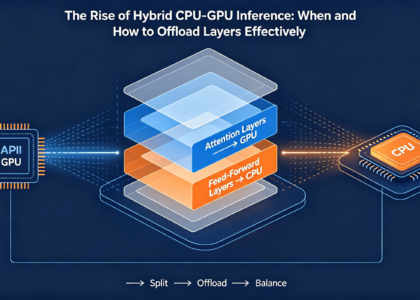
This is the linchpin of high-performance virtualized AI. GPU passthrough allows you to dedicate a physical GPU to a specific virtual machine or make it available to Docker containers, giving them near-native performance.
Method A: Direct Passthrough to a Proxmox VM
This gives one VM exclusive, full control of the GPU. It’s best for a dedicated, high-performance AI workload.
Implementation Steps:
- Enable IOMMU: In the host BIOS/UEFI and Proxmox kernel (by editing /etc/default/grub).
- Identify the GPU: Use lspci -nn | grep -i vga to find your GPU’s ID (e.g., 10de:2231 for an NVIDIA card).
- Blacklist Drivers: Prevent the host from using the GPU by adding its ID to the VFIO modules list (/etc/modprobe.d/vfio.conf).
- Attach to VM: In the Proxmox web interface, add the PCI device to your desired VM. Check the “All Functions” and “ROM-Bar” options.
Method B: Sharing GPU with Docker Containers (NVIDIA)
For container-based workflows, the NVIDIA Container Toolkit is essential.
Implementation Steps:
- Install Drivers: Ensure the latest NVIDIA drivers are on the host system.
- Install Toolkit: Follow NVIDIA’s guide to install the nvidia-container-toolkit.
- Test Runtime: Configure Docker to use the nvidia runtime by editing /etc/docker/daemon.json.
- Run with GPU: Use the –gpus all flag when running a container: docker run –gpus all ollama/ollama serve.
Choosing Your Path: A Practical Decision Guide
| Use Case & Goal | Recommended Primary Approach | Key Configuration & Rationale |
| Multi-Team/AIServer Hosting separate, full environments for different departments or projects. |
Proxmox VE with GPU Passthrough | Dedicate entire GPUs to specific VMs. Provides strong isolation, full OS customization, and is easier to manage for traditional IT teams. |
| Development & Experimentation Rapidly testing different models, frameworks, and toolchains. |
Docker with NVIDIA Runtime | Use Docker Compose to define stacks. Maximizes hardware sharing and efficiency; containers start instantly from pre-built images. |
| Hybrid Production Lab A mix of stable, long-running services and ephemeral research projects. |
Proxmox & Docker Combined | Run Proxmox on bare metal. Inside a powerful VM with GPU passthrough, run Docker to manage multiple AI application containers. This adds a layer of management and isolation. |
Troubleshooting Common Virtualization Hurdles
- “GPU Not Detected” in VM/Container: This is almost always a passthrough configuration issue. Double-check IOMMU groups, ensure the host driver is properly blacklisted, and verify the PCI device is correctly attached with all functions.
- Poor Performance in Container: Ensure you are using the nvidia runtime and the –gpus flag. Also, confirm your host has the correct driver version for your GPU and CUDA version required by the containerized application.
- Proxmox Host Crashes on VM Start: Often related to problematic ROM-Bar handling. Try starting the VM without the “ROM-Bar” option checked, or sourcing a specific GPU ROM file for more stability.
Conclusion: Building Your Sovereign AI Cloud
As highlighted at recent conferences, the future of scalable, open-source AI is modular and software-defined. Virtualizing your local AI infrastructure with Proxmox and Docker is the definitive step towards building your own sovereign AI cloud—a flexible, private, and cost-effective platform that embodies the principles of data control and long-term value that LocalArch.ai champions.
This approach future-proofs your investment. Need to test a new model? Spin up a Docker container. Need to provide a dedicated environment for a new data science team? Clone a VM template in Proxmox. By mastering these virtualization and passthrough practices, you move beyond being a user of single AI tools and become an architect of a resilient, scalable AI ecosystem that grows seamlessly with your ambitions.
Designing and implementing a robust, virtualized local AI infrastructure requires careful planning and expertise. The team at LocalArch.ai leverages deep experience with Proxmox, Docker, and GPU configurations to build customized, production-ready on-premise AI platforms for our clients. Contact us to transform your hardware into a sovereign AI cloud.